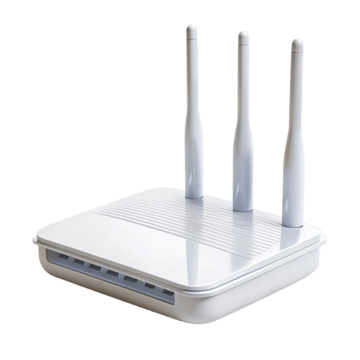

TP-Link’s home-networking range covers traditional Archer routers, Deco mesh systems, DSL/cable products in some markets, access points, and extenders. The important login detail is that there is no single TP-Link password that applies to every current model. Older products may use a published factory credential; many newer products ask the owner to create an administrator password during setup or use device-specific information.
How to reach a TP-Link router?
For many standard TP-Link routers, tplinkwifi.net and 192.168.0.1 are common local management addresses. Some products use 192.168.1.1, while Deco systems can use a different LAN range and are primarily managed with the Deco app. The reliable method is to check the default gateway on the connected device or the label/manual for the exact product.
Before trying a password
Look at the product label and Quick Installation Guide. TP-Link’s own documentation notes that default access information varies by product. If the first-run setup required you to create a local password, an old “admin/admin” list is not the right source for that device.
Common setup paths
- Archer and many standalone routers: browser management plus the Tether app.
- Deco: app-first mesh management, with model-dependent local web features.
- ISP/customized devices: follow the provider’s instructions where firmware or credentials have been changed.
If the page does not open
Stay connected to the TP-Link network, type the local address into the browser address bar rather than a search engine, pause a VPN, and verify the device’s current gateway. See Router Login Page Not Opening? for the full sequence.
TP-Link product families need different login expectations
Archer standalone routers, Deco mesh systems, DSL/cable modem routers, range extenders and powerline products do not all share one management address or authentication flow. Current TP-Link documentation distinguishes these classes: standard routers commonly use tplinkwifi.net or 192.168.0.1, modem-router families can use tplinkmodem.net/192.168.1.1, Deco uses tplinkdeco.net and the 192.168.68.1 LAN by default, while extenders can use tplinkrepeater.net or 192.168.0.254 in factory/recovery contexts.
Newer TP-Link routers create an admin password
Current setup guidance for newer models asks the owner to create a local administrator password. Older products can have published defaults, which explains why old credential databases still circulate “admin/admin.” Do not apply that historical pair to a modern Archer or Deco simply because a search result says “TP-Link default password.”
Tether versus Deco app
TP-Link’s Tether app is used for many standalone routers/extenders, while Deco is managed primarily through the Deco app. Browser management remains useful, but the available settings depend on the family and firmware. A missing browser feature can be intentional rather than evidence that the login failed.
Common TP-Link recovery path
If the local hostname fails, use the documented IP. If that also fails, read the actual gateway or the configured device address from the main router’s DHCP client list. TP-Link explicitly recommends client-list discovery for configured extenders. Reserve factory reset for cases where the address and administrator credential cannot be recovered through supported methods.
Record the network role
Decide whether the box is the primary router, a modem/router gateway, an access point, a mesh node, an extender, a cellular CPE or a provider-managed device. A router-mode guide can be wrong for the same hardware in access-point mode. Check which device supplies DHCP and which address appears as the client default gateway.
Before a factory reset
Save or photograph important settings first: WAN/PPPoE details, VLAN/IPTV values, Wi-Fi names, static reservations, port forwards, VPN configuration, DNS choices and any ISP/telephony settings. A reboot preserves configuration; a factory reset erases it. Reset only after you know how the internet connection and local network will be rebuilt.
After you regain access
- Use a strong unique administrator password.
- Install supported firmware updates through the vendor/provider method.
- Review remote administration and disable WAN-side access if it is not intentionally needed.
- Use WPA2-AES or WPA3 where supported and compatible.
- Check connected clients, guest/IoT isolation and obsolete convenience features you do not use.
- Back up a known-good configuration if the product provides export/backup.
Wi-Fi settings that deserve care
SSID, passphrase, WPA mode, band steering, channel width and guest-network isolation can affect every client. Changing an SSID or passphrase disconnects devices immediately. A manual channel can improve a known interference problem, but forcing the widest channel or a fixed channel without measuring the environment can make performance worse. Use WPA2-AES or WPA3 when supported; avoid WEP and legacy TKIP.
A safe TP-LINK login and troubleshooting sequence
- Confirm ownership and model. Work only on equipment you administer. Read the full model, hardware revision and provider label.
- Join the correct LAN. Use trusted Wi-Fi or Ethernet. Guest networks can intentionally block management traffic.
- Read the current gateway. Factory addresses are clues, not guarantees after setup. Windows, macOS, iOS and Android can show the gateway/router assigned to the active connection.
- Open the local address directly. Type the numeric address or documented local hostname in the browser address bar. Do not search the password or paste credentials into a public website.
- Interpret the result. A login form proves network reachability; a timeout suggests address/routing/isolation trouble; rejected credentials are an authentication problem, not an IP problem.
- Use model-specific recovery. Check the label, manual, vendor/provider app and official recovery steps. Reset only after other recovery options fail.
What a router IP can and cannot tell you?
A local IP tells you where an interface is reachable on that network. It does not identify the exact model, prove who owns the device, or reveal the administrator password. The same private address can be used simultaneously in millions of unrelated homes. Treat IP, model, administrator credential, Wi-Fi password and cloud account as separate facts.
When a source conflicts with your device?
Video walkthrough for TP-LINK
Useful when a factory router address no longer works: identify the gateway your device is actually using before changing passwords or resetting hardware.
How to Find Your Default Gateway or Router IP Address — YouTube networking tutorial. Watch on YouTube
Useful next steps
Archer, Deco and extenders use different management paths
TP-LINK: tP-Link home routers; exact model/setup can differ
- TP-LINK check: tP-Link home routers; exact model/setup can differ Official source 1
Illustrative case: An Archer login guide is applied to a Deco mesh or extender. Select the correct product family before interpreting the requested local or owner-account password.
Documentation and scope