
When a router login page will not open, diagnose reachability before credentials. A timeout, a search-results page, the wrong router, an HTTPS warning, and a rejected password are different symptoms and should not be treated with the same fix.
Step 1: Prove you are on the intended local network
Connect to the router’s main Wi-Fi or Ethernet. Guest networks commonly allow internet access while blocking access to private LAN devices. On a phone, disable mobile-data fallback temporarily if needed so the browser cannot silently leave Wi-Fi. Pause a VPN only when you are authorized and it is safe to do so; private-route overlap can send router traffic into the tunnel.
Step 2: Read the current default gateway
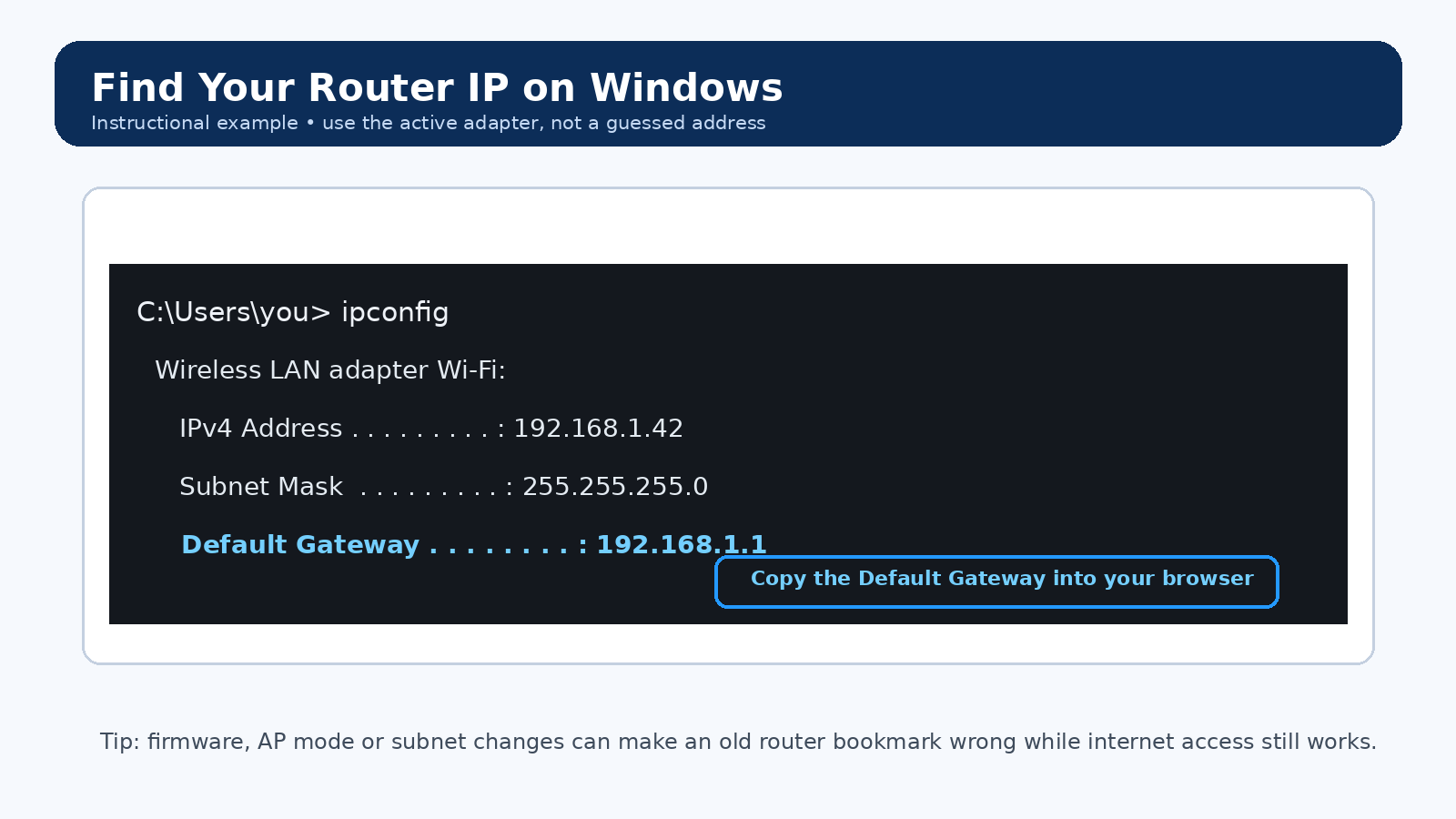
Do not start with a memorized address. Read the gateway/router value on the active adapter. On Windows, ipconfig shows the default gateway. On macOS, inspect the active network service’s TCP/IP settings. If the gateway is not the address in your bookmark, use the live value first.
Step 3: Match the browser symptom to the next check
| Browser result | What it tells you | Next check |
|---|---|---|
| Search results instead of a router page | The text was searched rather than opened as a local URL. | Type the full local IP or documented hostname in the browser address bar. |
| Connection timed out | No useful response reached the browser. | Recheck gateway, subnet, guest isolation, VPN routes, and whether another router is in front. |
| Connection refused | The target answered at the network layer but the requested web service/port was not available. | Try the documented HTTP/HTTPS method and current local hostname; check model guidance. |
| Another router opens | You reached a valid local device, just not the one you intended. | Map the ISP gateway, personal router, mesh controller, extender, and AP addresses. |
| Certificate/privacy warning | The local interface may use a self-signed or local certificate. | Verify the address/device first; do not normalize ignoring warnings on unexpected public sites. |
| Login form opens but password fails | Reachability is working; authentication is now the problem. | Use the exact model/provider credential source or supported recovery process. |
Step 4: Check for a two-router or changed-mode topology
An ISP gateway feeding a personal router can create two management networks. A router changed to access-point or bridge mode can also receive a new management address from the upstream DHCP server. Check the downstream router WAN address and the upstream client list before assuming the device is dead.
Step 5: Use model-specific authentication recovery
Separate the Wi-Fi password, local router administrator password, ISP account password, and vendor cloud/app account. The login prompt tells you which credential class is being requested. If the owner-created administrator password is lost, use the manufacturer/provider recovery steps for that exact model. Avoid cycling through internet password lists.
Step 6: Reset only when the recovery path is known
A factory reset can erase WAN authentication, VLAN/IPTV/voice settings, SSIDs, DHCP reservations, port forwards, VPN profiles, parental controls, mesh relationships, and other working configuration. Before resetting, record the model/revision, firmware, WAN details, LAN subnet, and settings required to restore service.
What evidence should you save if the problem persists?
Record the exact error text, router model/revision, gateway shown by the client, client IP/prefix, wired versus Wi-Fi result, whether guest/VPN mode changes the result, and whether the login form ever appears. That evidence tells the manufacturer or ISP far more than “192.168.1.1 does not work.”
Video walkthrough for Router Login Page Not Opening? A Step-by-Step Troubleshooting Guide
Useful when a factory router address no longer works: identify the gateway your device is actually using before changing passwords or resetting hardware.
How to Find Your Default Gateway or Router IP Address — YouTube networking tutorial. Watch on YouTube
FAQs From Real-World Router Problems
These questions reflect recurring symptoms reported by home-network users. The answers below are independently written and should be matched to your exact router, firmware and ISP setup.
Why does 192.168.1.1 time out even though my internet works?
First read the active Default Gateway on the device you are using. A changed LAN subnet, router/AP mode, mesh adoption, or a second router can make an old bookmark wrong. If another device can open the page, compare the affected device for VPN/proxy use, guest isolation, endpoint security, and its current route.
Reddit HomeNetworking: phone can reach router while PC cannot · NETGEAR: router access troubleshooting
Why does the router login page open on my phone but not on my PC?
That points first to the PC path, not automatically to a dead router. Compare the PC gateway with the phone network, disconnect an interfering VPN when safe, verify the PC is not on a guest/isolated network, and test a clean browser profile before considering a reset.
Reddit HomeNetworking report · NETGEAR access troubleshooting
Why do I see the ISP gateway instead of my own router?
You may have two routing devices or overlapping LAN subnets. Check the client Default Gateway and the downstream router WAN address. If both devices use the same subnet or management IP, map the topology and use non-overlapping LANs or an intentional bridge/access-point design instead of repeatedly resetting devices.
Reddit HomeNetworking: double-router forwarding case · RFC 1918 private address ranges
Why does the password printed on the router not work for the admin page?
The printed value may be the Wi-Fi key, a recovery value, or an initial setup credential rather than the current administrator password. Some products also change the login field according to the original setup method. Identify the exact model and workflow before resetting it.
Reddit HomeNetworking: sticker/access-code confusion · ARRIS G34/G36 login-flow example
Why does my router show a privacy or certificate warning?
Some local router interfaces use HTTPS in a way that can trigger a browser certificate warning. Confirm that the destination is your own local gateway and follow the exact vendor procedure for that model. Do not generalize this to certificate warnings on public websites.
TP-Link community: local HTTPS certificate warning · Linksys: local HTTPS login warning
Why is the admin page blank after I log in?
A blank page can come from blocked JavaScript, stale cached assets, extensions, endpoint security, or a firmware/UI fault. Try the vendor-documented local URL, a clean browser profile, and another trusted local device before a factory reset.
Reddit NETGEAR: admin access differs by client device · NETGEAR access troubleshooting