
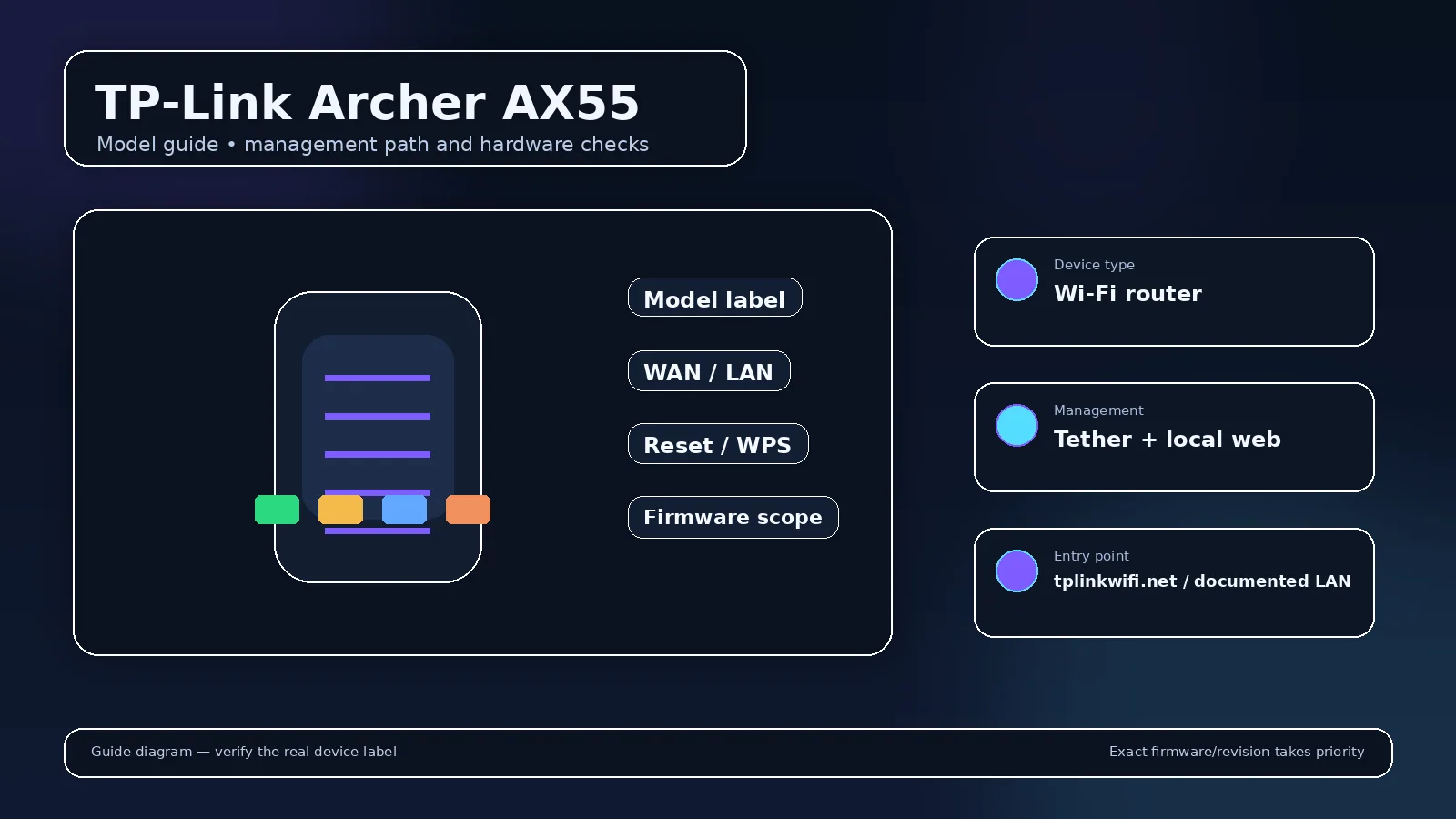
TP-Link Archer AX55 login and setup information is scoped to this exact model. TP-Link documentation for Archer AX55 shows first-time web setup at tplinkwifi.net and asks the owner to create an administrator password. Firmware and menu names can differ by hardware revision.
TP-Link Archer AX55 management details
| Management address | tplinkwifi.net; 192.168.0.1 on the documented default LAN |
|---|---|
| Administrator identity | No universal username; current setup uses a local password or TP-Link ID where enabled |
| Administrator password | Create/set during initial setup; do not assume admin/admin |
| Supported app/workflow | TP-Link Tether (supported functions) |
| Documentation scope | Archer AX55; confirm hardware version/region before firmware work |
The TP-Link Archer AX55 should be identified by its full model label before you use any login or firmware instruction. Products from TP-LINK can share a family name while using different hardware revisions, setup flows, or management addresses. The table below records the scope that applies to this exact guide.
Primary model documentation: official TP-Link Archer AX55 source. Use the revision/region noted above when firmware or reset behavior is involved.
How to sign in to TP-Link Archer AX55?
- Connect a trusted client to the TP-Link Archer AX55 LAN by Wi-Fi or Ethernet.
- For TP-Link Archer AX55, open the documented local hostname/address. If it fails, read that client device’s current Default Gateway instead of guessing another private IP.
- Authenticate with the administrator credential documented for this TP-Link Archer AX55 setup state; do not substitute its wireless passphrase unless the exact interface explicitly asks for it.
- Use TP-Link Tether (supported functions) only for the TP-Link Archer AX55 controls and recovery functions that the cited documentation assigns to that workflow.
When the TP-Link Archer AX55 login page seems to disappear?
A mode change can be the explanation rather than a failure. If the TP-Link Archer AX55 became an access point, mesh node, bridge, or downstream router, renew the client lease and map which device now runs DHCP and routing. That topology check is safer than repeatedly trying 192.168.1.1 or 192.168.0.1.
If the TP-Link Archer AX55 administrator password is rejected
Check the label, setup record, password manager, and the official recovery method for TP-Link Archer AX55. A normal reboot preserves the configured password. A factory reset is different: it can erase Wi-Fi, LAN, VPN, forwarding, parental-control, mesh, and WAN settings, so use it only when the documented TP-Link Archer AX55 recovery path requires it.
Firmware and hardware scope for TP-Link Archer AX55
Archer AX55; confirm hardware version/region before firmware work. Before an upgrade, confirm the exact model/revision and regional support page, keep power stable, and avoid firmware intended for a similar-looking device. If this unit is carrier- or ISP-customized, provider firmware can change both the menu and the safe update path.
Configuration checks that matter on TP-Link Archer AX55
- Confirm the administrator password is unique and stored separately from the Wi-Fi passphrase.
- Review wireless security and client compatibility before forcing a newer mode across every band.
- Check firmware only against the exact Archer AX55; confirm hardware version/region before firmware work support scope.
- Review remote management, WPS, UPnP and port-forward rules instead of assuming the factory state is still appropriate.
- Keep a record of LAN subnet, DHCP reservations, DNS choices and any VPN or mesh role before a reset or major upgrade.
Why can Wi-Fi work while the TP-Link Archer AX55 admin password fails?
Wireless association and administrator authentication are separate on the TP-Link Archer AX55. The current administrator value follows this model’s setup/recovery rules; a working Wi-Fi key does not prove it should unlock the settings page.
Why can the usual TP-Link Archer AX55 address open another device?
In a multi-router network, the client may be routed by an ISP gateway or another router while the TP-Link Archer AX55 sits downstream or operates as an access point. Compare the client gateway and upstream device list before resetting either unit.
Confirm that the instructions match your exact unit
Archer AX55; confirm hardware version/region before firmware work Check the printed model and, where shown, hardware revision before using a firmware file or reset sequence. If the router was supplied by an ISP or mobile carrier, provider firmware can change the sign-in path, hide radio/WAN settings, or replace the retail app workflow. The current default gateway on a connected client is the best clue when the remembered factory address no longer responds.
What to test after any configuration change?
- Local admin access still works from the main LAN.
- DHCP gives clients the intended address, gateway and DNS.
- Internet access works on both wired and wireless clients where applicable.
- Guest/IoT isolation still matches your security plan.
- Port forwards, VPNs or parental-control rules still target the intended devices.
Video walkthrough for TP-Link Archer AX55
TP-Link’s support walkthrough shows the normal physical connection and first-time router setup flow. Exact menus can differ by model and firmware.
TP-Link Router Quick Setup — TP-Link Global Support. Watch on YouTube
Useful next steps
Archer AX55 firmware selection
TP-Link Archer AX55: archer AX55; confirm hardware version/region before firmware work. The reference below is the support starting point; this is not a claim of physical testing on every revision.
- TP-Link Archer AX55 check: tP-Link documentation for Archer AX55 shows first-time web setup at tplinkwifi.net and asks the owner to create an administrator password. Firmware and menu names can differ by hardware revision. Official source 1
Illustrative case: A downloaded firmware file is rejected before installation. Compare AX55 hardware revision, region and file type with the support selector; do not rename an incompatible image to force it through.
Can an AX55 firmware file be used just because the product name matches?
The model name is only one requirement. Match the hardware revision and region shown by TP-Link’s download selector.
Documentation and scope