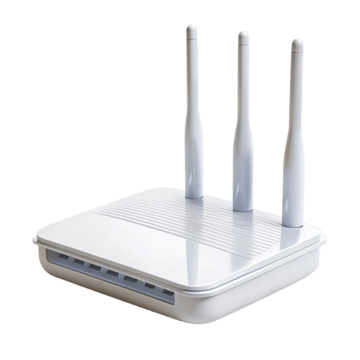
Your router IP is the local address your device uses to reach the router on the network you are connected to. Operating systems usually call it the default gateway, router, or simply gateway. It is different from your public IP address, and it is a better answer than guessing 192.168.1.1 until something opens.
Start with the value your device is already using
If you are online through the router, your phone or computer normally knows the correct gateway already. That remains true even if the router’s factory address was changed during setup, an ISP customized it, or a second router was added later.
Windows 10 and Windows 11
- Connect to the Wi-Fi or Ethernet network whose router you want to manage.
- Open Terminal, Command Prompt, or PowerShell.
- Run
ipconfig. - Find the active adapter and read the value beside Default Gateway.
You can also open Settings → Network & internet → your active connection → Hardware properties. Windows normally shows the gateway with the other IP details.
macOS
Open System Settings → Network, select the active connection, and view its details. In the TCP/IP section, the value labelled Router is the local gateway. From Terminal, route -n get default can also show the default route.
iPhone and iPad
Open Settings → Wi-Fi and tap the information button beside the connected network. The Router field is the gateway for that Wi-Fi network.
Android
Open the details for the connected Wi-Fi network. Depending on the manufacturer and Android version, the gateway may appear under Network details, Advanced, or IP settings. If the interface hides it, a network-information app can read the same routing information, but you do not need an internet lookup service to discover a local gateway.
Linux
Open a terminal and run ip route. The line beginning with default via normally contains the router address.
What should the address look like?
Home routers commonly use private IPv4 space: 10.0.0.0/8, 172.16.0.0/12, or 192.168.0.0/16. Familiar gateway values include 192.168.1.1, 192.168.0.1, and 10.0.0.1, but the correct value is whatever your network is actually using.
How to open the router page?
- Stay connected to the router’s local network.
- Type the gateway directly into the browser address bar, for example
http://192.168.1.1. Do not put it into a search box. - If the router redirects to HTTPS or shows a local certificate warning, first confirm that the address really is your gateway before proceeding.
- Use the administrator credential for that device. The Wi-Fi password and router-admin password are often different.
If the page still does not open
Temporarily disable a VPN, confirm you are not connected to a guest Wi-Fi network that blocks access to local devices, try Ethernet if possible, and make sure you are not using the modem’s address when you actually want the separate Wi-Fi router. Do not factory-reset the router as the first troubleshooting step; a reset removes configuration and can interrupt service until the connection is set up again.
Router IP vs. public IP
A public IP identifies your connection toward the internet. A router IP such as 192.168.1.1 exists inside your local network. Use What Is My IP for the public side and this guide for the local admin side.
Default gateway discovery when multiple adapters exist
Windows/macOS can have Ethernet, Wi-Fi, VPN, virtualization and container adapters at once. Use the route associated with the connection carrying your local traffic. A VPN can install a new default or more-specific private routes; temporarily disconnect it when you are trying to discover the physical home router.
IPv6 gateways
IPv6 commonly uses link-local router addresses and Router Advertisements rather than the same IPv4 conventions. A router can have 192.168.x.x for IPv4 management while clients also use IPv6. Do not assume an IPv6-enabled network eliminates the local IPv4 admin page.
Turn the gateway into a troubleshooting anchor
If the gateway answers but the internet fails, work outward to WAN/DNS/ISP. If the gateway does not answer, work inward to Wi-Fi/Ethernet, DHCP, isolation and router state.
Video walkthrough for What Is My Router IP? How to Find Your Default Gateway on Any Device
Visual foundation for network/host bits, masks, CIDR and subnetting. Use the calculator on this site for the exact arithmetic after understanding the concept.
Subnet Mask Explained — PowerCert Animated Videos. Watch on YouTube