
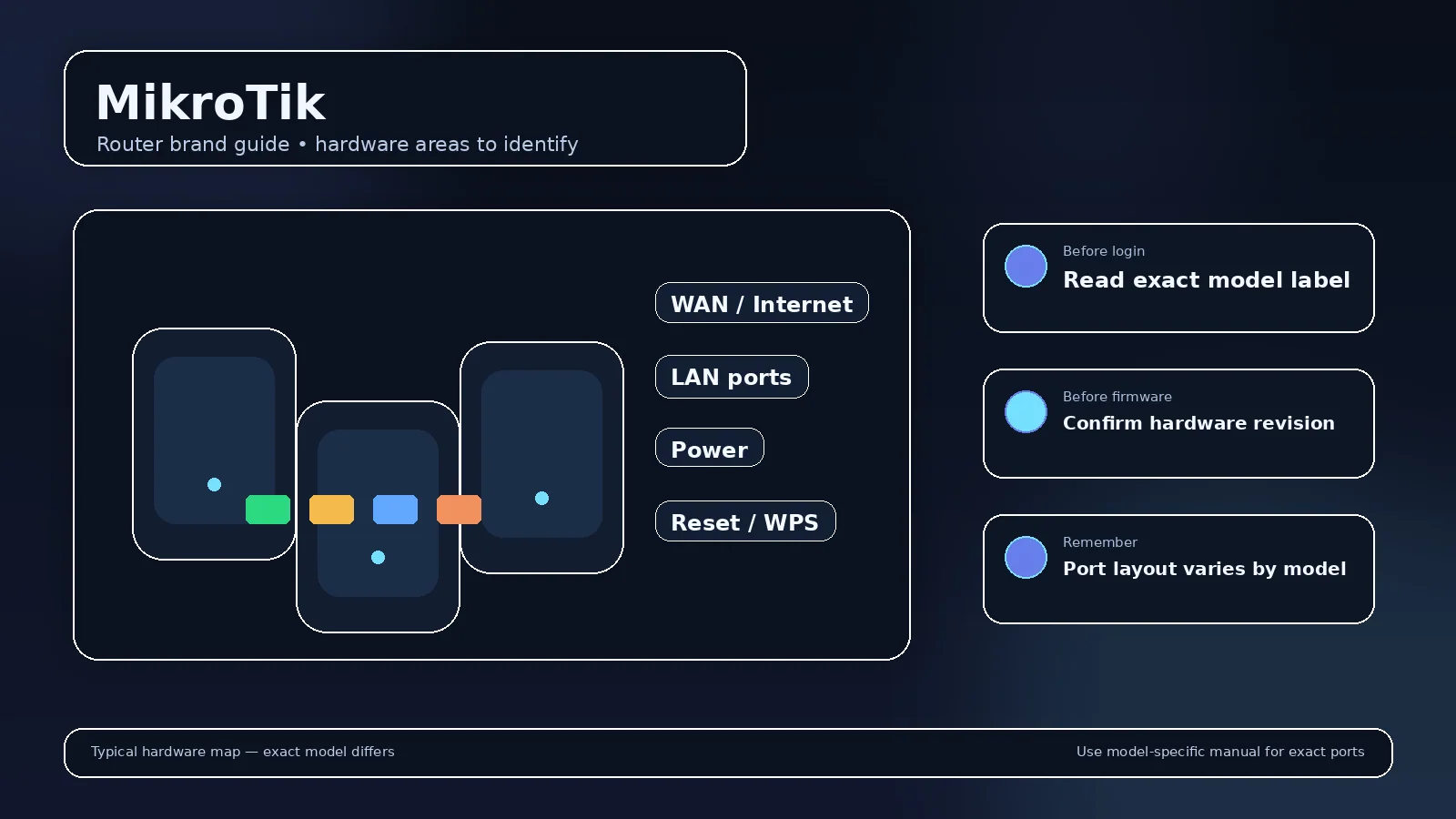
MikroTik builds RouterOS-based routers, switches, CPEs and wireless equipment for home labs, WISPs and enterprise networks. Its default configuration depends on the board type rather than one global recipe.
Common MikroTik local addresses
Current RouterOS documentation shows 192.168.88.1/24 on many AP-router, CPE, switch and IP-only profiles, while LTE CPE AP router defaults can use 192.168.188.1/24. Check the exact factory profile with RouterOS documentation or the device configuration.
Management methods
WebFig, WinBox and CLI/SSH can all be part of MikroTik administration. Quick Set provides simplified configuration but should not be repeatedly mixed with complex manual RouterOS changes.
Security and recovery
Restrict management to trusted networks, keep RouterOS updated, export configuration before major bridge/VLAN/firewall changes and use model-specific reset/recovery instructions. Provider-managed MikroTik CPE should not be reset without authorization.
Record the network role
Decide whether the box is the primary router, a modem/router gateway, an access point, a mesh node, an extender, a cellular CPE or a provider-managed device. A router-mode guide can be wrong for the same hardware in access-point mode. Check which device supplies DHCP and which address appears as the client default gateway.
Before a factory reset
Save or photograph important settings first: WAN/PPPoE details, VLAN/IPTV values, Wi-Fi names, static reservations, port forwards, VPN configuration, DNS choices and any ISP/telephony settings. A reboot preserves configuration; a factory reset erases it. Reset only after you know how the internet connection and local network will be rebuilt.
After you regain access
- Use a strong unique administrator password.
- Install supported firmware updates through the vendor/provider method.
- Review remote administration and disable WAN-side access if it is not intentionally needed.
- Use WPA2-AES or WPA3 where supported and compatible.
- Check connected clients, guest/IoT isolation and obsolete convenience features you do not use.
- Back up a known-good configuration if the product provides export/backup.
Advanced router platforms expose more than a consumer setup wizard
Routing tables, firewall chains, bridges, VLANs, DHCP servers, VPNs, wireless controllers and policy rules can all coexist. A device can therefore be reachable at a familiar factory address yet no longer behave like the factory profile after an administrator has changed bridge membership or IP services.
Export before experimentation
Save a configuration export/backup appropriate to the platform and record the software version. Make one logical change at a time. If you are learning advanced routing or firewall features, test on a non-critical device or maintenance window rather than experimenting on the only internet gateway.
Layer-2 discovery can be different from IP management
Some advanced platforms offer discovery or management methods that work even when IP addressing is wrong. Use those only on networks and devices you are authorized to administer, and follow vendor documentation rather than third-party credential lists.
A safe MikroTik login and troubleshooting sequence
- Confirm ownership and model. Work only on equipment you administer. Read the full model, hardware revision and provider label.
- Join the correct LAN. Use trusted Wi-Fi or Ethernet. Guest networks can intentionally block management traffic.
- Read the current gateway. Factory addresses are clues, not guarantees after setup. Windows, macOS, iOS and Android can show the gateway/router assigned to the active connection.
- Open the local address directly. Type the numeric address or documented local hostname in the browser address bar. Do not search the password or paste credentials into a public website.
- Interpret the result. A login form proves network reachability; a timeout suggests address/routing/isolation trouble; rejected credentials are an authentication problem, not an IP problem.
- Use model-specific recovery. Check the label, manual, vendor/provider app and official recovery steps. Reset only after other recovery options fail.
What a router IP can and cannot tell you?
A local IP tells you where an interface is reachable on that network. It does not identify the exact model, prove who owns the device, or reveal the administrator password. The same private address can be used simultaneously in millions of unrelated homes. Treat IP, model, administrator credential, Wi-Fi password and cloud account as separate facts.
When a source conflicts with your device?
Video walkthrough for MikroTik
A practical RouterOS basics walkthrough covering bridge, addressing, DHCP and NAT. Match commands and menus to the installed RouterOS release.
Basic MikroTik Router Setup — Scoop Distribution. Watch on YouTube
Useful next steps
Identify the RouterOS board profile and recovery path
MikroTik: mikroTik devices; factory profiles depend on board/device type and RouterOS configuration
- MikroTik check: mikroTik devices; factory profiles depend on board/device type and RouterOS configuration Official source 1
Illustrative case: A VLAN change interrupts IP access while an allowed local discovery path still sees the board. Check bridge and management permissions before applying a new Quick Set profile.
Documentation and scope