
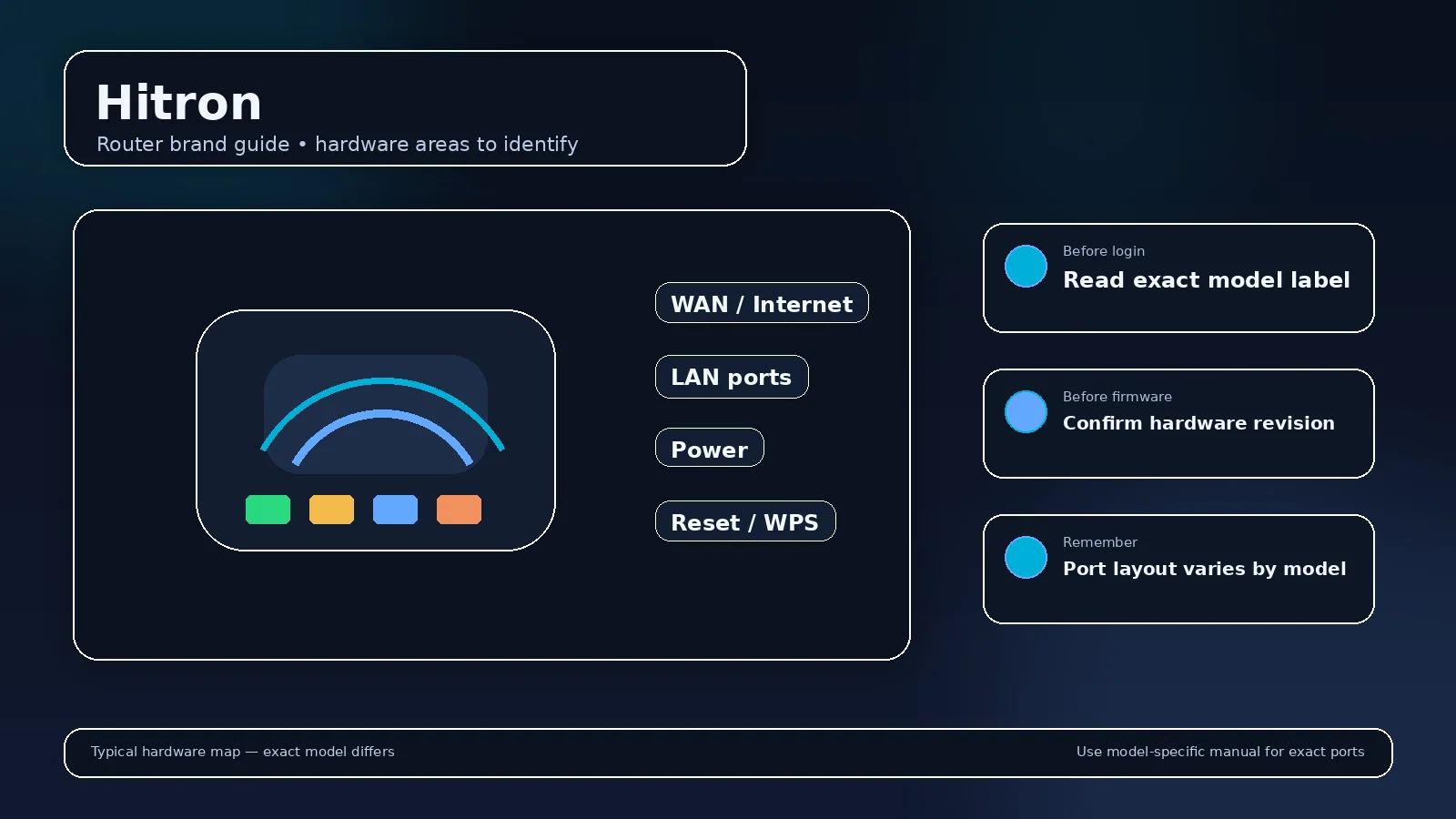
Hitron router login information is model-specific. The diagnostic address of a cable modem is not necessarily the LAN gateway address of a routed Hitron gateway. Verify whether the unit is in gateway/router or bridge/modem mode.
How to identify the correct Hitron management path?
Start a Hitron login by identifying the exact product family and its current role. A retail router, ISP gateway, access point, mesh node, or extender can use a different management path even when the same logo appears on the case.
- Connect to the Hitron device or the LAN it serves.
- Read the client default gateway before trying a remembered private address.
- Management method: Model/mode-specific web GUI.
- App/cloud context: Provider app where offered; local GUI availability varies.
- Use the administrator value documented for the exact unit; never infer it from the IP address.
Representative official documentation: Hitron Support: access the GUI on CODA devices. Scope: Hitron CODA-family cable modems/gateways and provider variants; routing mode, bridge mode and ISP firmware matter.
Addresses associated with Hitron
192.168.0.1192.168.100.1
These addresses are discovery starting points for Hitron, not permanent identities. A changed LAN subnet, access-point/bridge mode, mesh adoption, or an upstream router can move the local management address after setup.
If a Hitron page does not open
Check the actual client gateway, test from the trusted/home LAN rather than guest Wi-Fi, and remove an overlapping VPN route for the test. If the Hitron unit is not the primary router, inspect the upstream DHCP/client list for its assigned address. A timeout is an address/routing symptom; a visible login screen with a rejected password is an authentication symptom.
Administrator password, Wi-Fi key, and account sign-in
On Hitron equipment, those credentials can be separate. The Wi-Fi passphrase joins the wireless network, while the administrator credential protects local configuration; app-managed products can add a cloud identity and ISP devices can add a provider account or device-access code. Use the label wording and exact documentation instead of assuming one printed password serves every role.
What should you record before changing a Hitron router?
Record the full model, hardware revision, firmware, LAN subnet, current gateway, WAN mode, SSIDs, and any reservations, VPNs, forwards, or provider-specific settings. For Hitron firmware work, the exact model/revision support page takes priority over a visually similar product.
Reset and recovery for Hitron
A normal reboot preserves configuration; a factory reset does not. Before resetting a Hitron device, identify how the internet connection will be restored and whether ISP voice, IPTV, VLANs, mesh pairing, or cloud onboarding need separate recovery. Use the exact model procedure rather than a brand-wide reset timer.
Why can the printed password be rejected?
On a Hitron label, the printed value may describe Wi-Fi, setup, device access, or local administration. Match the label field to the prompt on the screen before deciding the credential is wrong.
Why can another Hitron guide show a different login?
Hitron CODA-family cable modems/gateways and provider variants; routing mode, bridge mode and ISP firmware matter. Model families, firmware generations, regions and ISP customization can legitimately produce a different address or management workflow.
How to identify the exact Hitron device before changing settings?
Read the model number, hardware revision and provider branding from the label or current dashboard. Two products carrying the same brand can use different management addresses, apps, reset behavior and firmware. If the device was supplied by an ISP, the provider can replace retail firmware, hide settings, or assign a different LAN. The safest sequence is: identify the unit, read the current default gateway, open the local interface or supported app, then match instructions to that exact model/revision.
Related guides
Use the router login guide to discover the current gateway, the administrator-password recovery guide when sign-in fails, and the firmware guide before applying updates.
Video walkthrough for Hitron
Useful when a factory router address no longer works: identify the gateway your device is actually using before changing passwords or resetting hardware.
How to Find Your Default Gateway or Router IP Address — YouTube networking tutorial. Watch on YouTube
Useful next steps
Read the CODA model before looking for wireless settings
Hitron: hitron CODA-family cable modems/gateways and provider variants; routing mode, bridge mode and ISP firmware matter.
- Hitron check: the diagnostic address of a cable modem is not necessarily the LAN gateway address of a routed Hitron gateway. Verify whether the unit is in gateway/router or bridge/modem mode. Official source 1
Illustrative case: A modem management page can show connection information without offering router Wi-Fi controls. Confirm whether the particular CODA product is a modem or gateway.
Documentation and scope