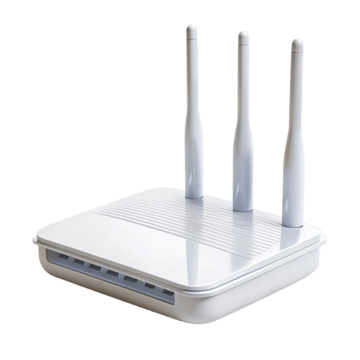
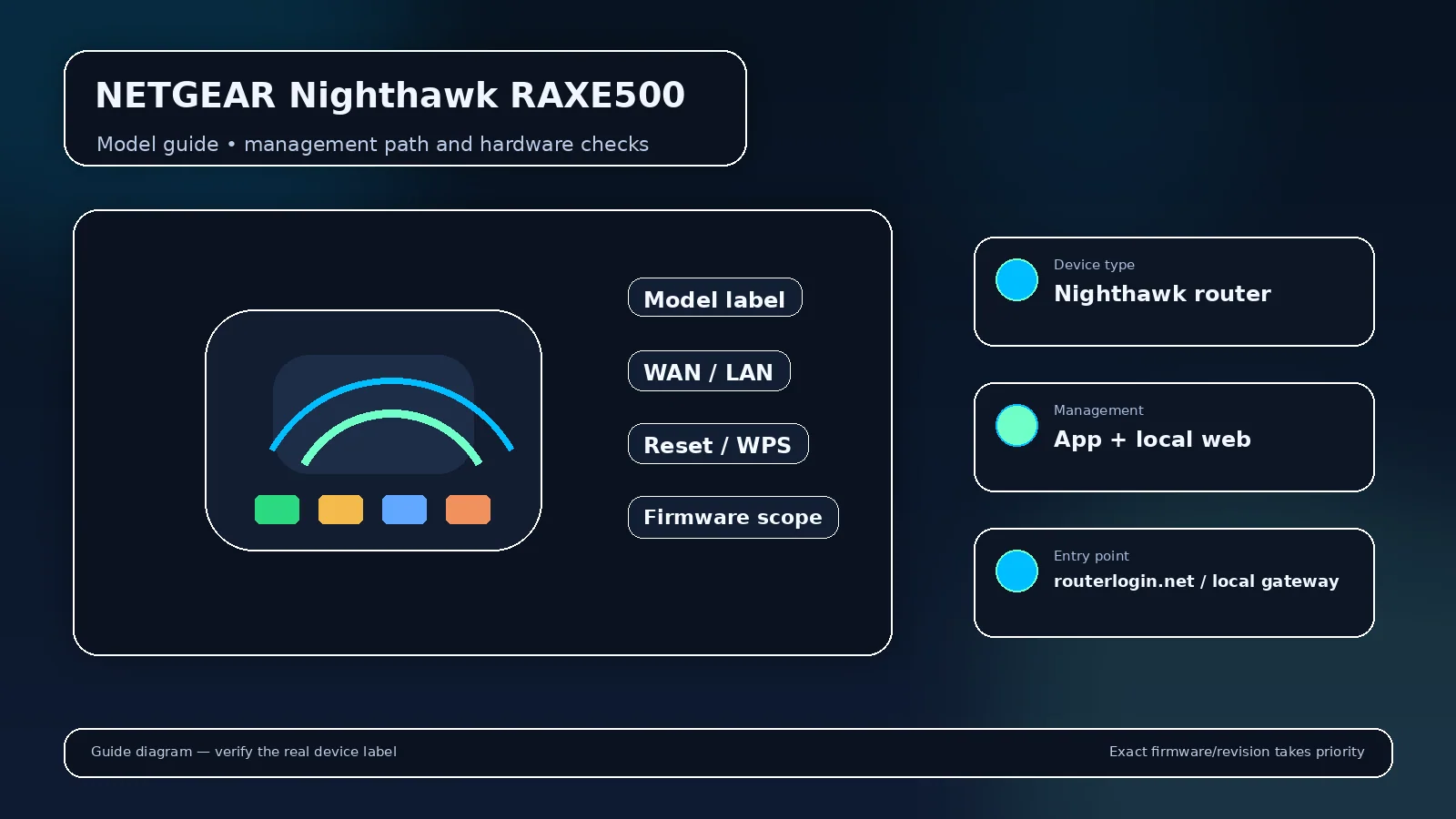
NETGEAR Nighthawk RAXE500 login and setup information is scoped to this exact model. The 6 GHz band has different client/security requirements from 2.4/5 GHz. Login troubleshooting should be kept separate from 6 GHz compatibility troubleshooting.
NETGEAR Nighthawk RAXE500 management details
| Management address | routerlogin.net / routerlogin.com; default LAN commonly 192.168.1.1 |
|---|---|
| Administrator identity | admin for local web management |
| Administrator password | Owner-configured during setup; not the Wi-Fi key |
| Supported app/workflow | Nighthawk app plus local browser management |
| Documentation scope | Nighthawk RAXE500 tri-band WiFi 6E router |
For NETGEAR Nighthawk RAXE500, start with the management route documented for this model rather than a brand-wide password table. The current LAN address can move after access-point mode, mesh adoption, a subnet change, or connection behind an ISP gateway, so the client default gateway is the best fallback when the documented factory route no longer answers.
Primary model documentation: official NETGEAR Nighthawk RAXE500 source. Use the revision/region noted above when firmware or reset behavior is involved.
How to sign in to NETGEAR Nighthawk RAXE500?
- Connect a trusted client to the NETGEAR Nighthawk RAXE500 LAN by Wi-Fi or Ethernet.
- For NETGEAR Nighthawk RAXE500, open the documented local hostname/address. If it fails, read that client device’s current Default Gateway instead of guessing another private IP.
- Authenticate with the administrator credential documented for this NETGEAR Nighthawk RAXE500 setup state; do not substitute its wireless passphrase unless the exact interface explicitly asks for it.
- Use Nighthawk app plus local browser management only for the NETGEAR Nighthawk RAXE500 controls and recovery functions that the cited documentation assigns to that workflow.
If NETGEAR Nighthawk RAXE500 does not open at the documented address
Read the default gateway from a device connected to the NETGEAR Nighthawk RAXE500. If that gateway belongs to another router, check the upstream client list for the NETGEAR Nighthawk RAXE500 management address. Also test from the main LAN rather than guest Wi-Fi, and temporarily remove a VPN route that overlaps the private subnet before changing router settings.
If the NETGEAR Nighthawk RAXE500 administrator password is rejected
Check the label, setup record, password manager, and the official recovery method for NETGEAR Nighthawk RAXE500. A normal reboot preserves the configured password. A factory reset is different: it can erase Wi-Fi, LAN, VPN, forwarding, parental-control, mesh, and WAN settings, so use it only when the documented NETGEAR Nighthawk RAXE500 recovery path requires it.
Firmware and hardware scope for NETGEAR Nighthawk RAXE500
Nighthawk RAXE500 tri-band WiFi 6E router. Before an upgrade, confirm the exact model/revision and regional support page, keep power stable, and avoid firmware intended for a similar-looking device. If this unit is carrier- or ISP-customized, provider firmware can change both the menu and the safe update path.
Configuration checks that matter on NETGEAR Nighthawk RAXE500
- Confirm the administrator password is unique and stored separately from the Wi-Fi passphrase.
- Review wireless security and client compatibility before forcing a newer mode across every band.
- Check firmware only against the exact Nighthawk RAXE500 tri-band WiFi 6E router support scope.
- Review remote management, WPS, UPnP and port-forward rules instead of assuming the factory state is still appropriate.
- Keep a record of LAN subnet, DHCP reservations, DNS choices and any VPN or mesh role before a reset or major upgrade.
Why can Wi-Fi work while the NETGEAR Nighthawk RAXE500 admin password fails?
Wireless association and administrator authentication are separate on the NETGEAR Nighthawk RAXE500. The current administrator value follows this model’s setup/recovery rules; a working Wi-Fi key does not prove it should unlock the settings page.
Why can the usual NETGEAR Nighthawk RAXE500 address open another device?
In a multi-router network, the client may be routed by an ISP gateway or another router while the NETGEAR Nighthawk RAXE500 sits downstream or operates as an access point. Compare the client gateway and upstream device list before resetting either unit.
Confirm that the instructions match your exact unit
Nighthawk RAXE500 tri-band WiFi 6E router Check the printed model and, where shown, hardware revision before using a firmware file or reset sequence. If the router was supplied by an ISP or mobile carrier, provider firmware can change the sign-in path, hide radio/WAN settings, or replace the retail app workflow. The current default gateway on a connected client is the best clue when the remembered factory address no longer responds.
What to test after any configuration change?
- Local admin access still works from the main LAN.
- DHCP gives clients the intended address, gateway and DNS.
- Internet access works on both wired and wireless clients where applicable.
- Guest/IoT isolation still matches your security plan.
- Port forwards, VPNs or parental-control rules still target the intended devices.
Video walkthrough for NETGEAR Nighthawk RAXE500
Official NETGEAR visual setup guide referenced by NETGEAR support for installations that need the Nighthawk app or local router interface.
NETGEAR Router Installation and Web-Interface Setup — NETGEAR Support. Watch on YouTube
Useful next steps
RAXE500 isolation versus management
NETGEAR Nighthawk RAXE500: the linked NETGEAR user manual names model RAXE500. Documentation checked 25 September 2026. Match the installed firmware before applying a menu path; this is a documentation review, not a hardware test.
- NETGEAR Nighthawk RAXE500 check: the RAXE500 manual documents separate security choices for the 6 GHz radio. A device that works on 2.4 or 5 GHz is not thereby proven compatible with 6 GHz. Official source 1
- NETGEAR Nighthawk RAXE500 check: for a private home network, keep authenticated security enabled. Do not switch to an open network simply to make an incompatible client connect. Official source 1
Illustrative case: A guest client reaches websites while the main wired computer can open router settings. Compare guest isolation and management permissions rather than disabling protection to make both clients behave alike.
Is guest-network isolation an admin-password problem?
No. A connection blocked before the login page is a reachability or policy issue, not rejected credentials.
Documentation and scope