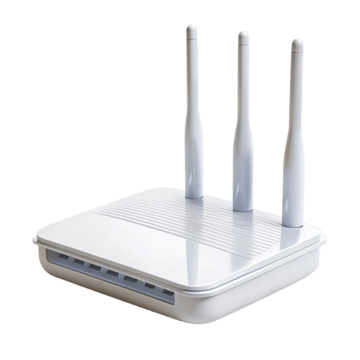

TP-Link Archer BE550 login and setup information is scoped to this exact model. The Archer BE550 has multiple hardware revisions. TP-Link explicitly tells users to select the correct revision before downloading firmware; a firmware file for the wrong hardware version must not be used.
TP-Link Archer BE550 management details
| Management address | tplinkwifi.net or 192.168.0.1 on documented setup |
|---|---|
| Administrator identity | No universal username; local password/TP-Link ID flow |
| Administrator password | Created by owner during setup; recover/reset using documented methods |
| Supported app/workflow | TP-Link Tether |
| Documentation scope | Archer BE550; multiple hardware revisions exist |
Management for the TP-Link Archer BE550 depends on its present role in the network. A primary router normally owns the client gateway; an access point or mesh node can receive a management address from an upstream router. Confirm the operating mode before treating a failed factory address as a fault.
Primary model documentation: official TP-Link Archer BE550 source. Use the revision/region noted above when firmware or reset behavior is involved.
How to sign in to TP-Link Archer BE550?
- Connect a trusted client to the TP-Link Archer BE550 LAN by Wi-Fi or Ethernet.
- For TP-Link Archer BE550, open the documented local hostname/address. If it fails, read that client device’s current Default Gateway instead of guessing another private IP.
- Authenticate with the administrator credential documented for this TP-Link Archer BE550 setup state; do not substitute its wireless passphrase unless the exact interface explicitly asks for it.
- Use TP-Link Tether only for the TP-Link Archer BE550 controls and recovery functions that the cited documentation assigns to that workflow.
Use the current network path to find TP-Link Archer BE550
Factory addresses are setup defaults, not permanent identities. On the TP-Link Archer BE550, a changed LAN subnet, restore, ISP integration, or non-router mode can move the management endpoint. Read the active path first, then use the documented hostname or exact assigned address.
If the TP-Link Archer BE550 administrator password is rejected
Check the label, setup record, password manager, and the official recovery method for TP-Link Archer BE550. A normal reboot preserves the configured password. A factory reset is different: it can erase Wi-Fi, LAN, VPN, forwarding, parental-control, mesh, and WAN settings, so use it only when the documented TP-Link Archer BE550 recovery path requires it.
Firmware and hardware scope for TP-Link Archer BE550
Archer BE550; multiple hardware revisions exist. Before an upgrade, confirm the exact model/revision and regional support page, keep power stable, and avoid firmware intended for a similar-looking device. If this unit is carrier- or ISP-customized, provider firmware can change both the menu and the safe update path.
Configuration checks that matter on TP-Link Archer BE550
- Confirm the administrator password is unique and stored separately from the Wi-Fi passphrase.
- Review wireless security and client compatibility before forcing a newer mode across every band.
- Check firmware only against the exact Archer BE550; multiple hardware revisions exist support scope.
- Review remote management, WPS, UPnP and port-forward rules instead of assuming the factory state is still appropriate.
- Keep a record of LAN subnet, DHCP reservations, DNS choices and any VPN or mesh role before a reset or major upgrade.
Why can Wi-Fi work while the TP-Link Archer BE550 admin password fails?
Wireless association and administrator authentication are separate on the TP-Link Archer BE550. The current administrator value follows this model’s setup/recovery rules; a working Wi-Fi key does not prove it should unlock the settings page.
Why can the usual TP-Link Archer BE550 address open another device?
In a multi-router network, the client may be routed by an ISP gateway or another router while the TP-Link Archer BE550 sits downstream or operates as an access point. Compare the client gateway and upstream device list before resetting either unit.
Confirm that the instructions match your exact unit
Archer BE550; multiple hardware revisions exist Check the printed model and, where shown, hardware revision before using a firmware file or reset sequence. If the router was supplied by an ISP or mobile carrier, provider firmware can change the sign-in path, hide radio/WAN settings, or replace the retail app workflow. The current default gateway on a connected client is the best clue when the remembered factory address no longer responds.
What to test after any configuration change?
- Local admin access still works from the main LAN.
- DHCP gives clients the intended address, gateway and DNS.
- Internet access works on both wired and wireless clients where applicable.
- Guest/IoT isolation still matches your security plan.
- Port forwards, VPNs or parental-control rules still target the intended devices.
Video walkthrough for TP-Link Archer BE550
Useful when a factory router address no longer works: identify the gateway your device is actually using before changing passwords or resetting hardware.
How to Find Your Default Gateway or Router IP Address — YouTube networking tutorial. Watch on YouTube
Useful next steps
Archer BE550 configuration after replacement
TP-Link Archer BE550: archer BE550; multiple hardware revisions exist. The reference below is the support starting point; this is not a claim of physical testing on every revision.
- TP-Link Archer BE550 check: the Archer BE550 has multiple hardware revisions. TP-Link explicitly tells users to select the correct revision before downloading firmware; a firmware file for the wrong hardware version must not be used. Official source 1
Illustrative case: A replacement unit has a new LAN while a server retains a fixed old address. Compare the server prefix, router LAN and DHCP reservations; repair the addressing plan before reproducing port forwards.
Should I restore a backup from a different router onto a BE550?
Only when the manufacturer explicitly supports that migration. Record the required settings and reapply them carefully otherwise.
Documentation and scope