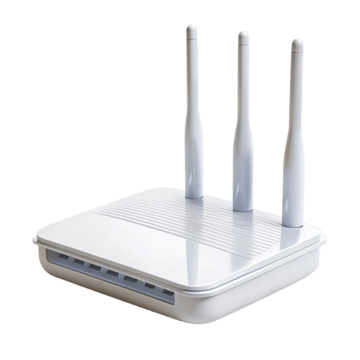

D-Link has produced multiple generations of consumer routers with different setup experiences. Its official support documentation commonly uses dlinkrouter.local and 192.168.0.1 for local administration, but password behavior changes across older and newer hardware.
How to reach a D-Link router?
While connected to the router, try the local hostname documented for the model or the current gateway address. 192.168.0.1 is common on D-Link routers. If the router came from an ISP or has been configured previously, use the gateway shown by the connected device rather than assuming the factory network still exists.
Do not assume a blank password?
Older D-Link support material often describes an admin username with a blank factory password. D-Link also states that routers purchased in newer generations can ship with secure-by-default credentials located on the device. That is why this page does not turn an old-generation default into a brand-wide password claim.
Reset consequences
A factory reset removes Wi-Fi, WAN, port-forwarding, and other custom settings. If the router is ISP-provisioned, record the provider-specific configuration first. Reboot and gateway discovery are safer first steps when the only problem is that the login page will not open.
D-Link generations make old default-password tables unreliable
D-Link has sold consumer routers for decades. Older support pages can describe an admin account with a blank password, while newer security-by-default products can use unique or setup-created credentials. The correct login behavior therefore depends on the exact model and generation, not the D-Link logo or 192.168.0.1 alone.
dlinkrouter.local and 192.168.0.1
D-Link documents both a local hostname and the numeric address on supported routers. If one works and the other does not, the problem can be local DNS/hostname resolution. If neither works, verify the current default gateway and whether the device is operating as a router or access point.
Firmware and regional models
Menu names and firmware availability vary by model/region. Never flash firmware selected only by a similar-looking product name; match the complete model and hardware revision. During an update, use stable power and preferably a wired connection where the vendor recommends it.
Reset with ISP caution
If a D-Link product is ISP-supplied, record WAN, VLAN, VoIP or provider login details before a reset. Retail quick-start defaults may not match provider firmware and the ISP’s documentation takes priority.
Record the network role
Decide whether the box is the primary router, a modem/router gateway, an access point, a mesh node, an extender, a cellular CPE or a provider-managed device. A router-mode guide can be wrong for the same hardware in access-point mode. Check which device supplies DHCP and which address appears as the client default gateway.
Before a factory reset
Save or photograph important settings first: WAN/PPPoE details, VLAN/IPTV values, Wi-Fi names, static reservations, port forwards, VPN configuration, DNS choices and any ISP/telephony settings. A reboot preserves configuration; a factory reset erases it. Reset only after you know how the internet connection and local network will be rebuilt.
After you regain access
- Use a strong unique administrator password.
- Install supported firmware updates through the vendor/provider method.
- Review remote administration and disable WAN-side access if it is not intentionally needed.
- Use WPA2-AES or WPA3 where supported and compatible.
- Check connected clients, guest/IoT isolation and obsolete convenience features you do not use.
- Back up a known-good configuration if the product provides export/backup.
Wi-Fi settings that deserve care
SSID, passphrase, WPA mode, band steering, channel width and guest-network isolation can affect every client. Changing an SSID or passphrase disconnects devices immediately. A manual channel can improve a known interference problem, but forcing the widest channel or a fixed channel without measuring the environment can make performance worse. Use WPA2-AES or WPA3 when supported; avoid WEP and legacy TKIP.
A safe D-Link login and troubleshooting sequence
- Confirm ownership and model. Work only on equipment you administer. Read the full model, hardware revision and provider label.
- Join the correct LAN. Use trusted Wi-Fi or Ethernet. Guest networks can intentionally block management traffic.
- Read the current gateway. Factory addresses are clues, not guarantees after setup. Windows, macOS, iOS and Android can show the gateway/router assigned to the active connection.
- Open the local address directly. Type the numeric address or documented local hostname in the browser address bar. Do not search the password or paste credentials into a public website.
- Interpret the result. A login form proves network reachability; a timeout suggests address/routing/isolation trouble; rejected credentials are an authentication problem, not an IP problem.
- Use model-specific recovery. Check the label, manual, vendor/provider app and official recovery steps. Reset only after other recovery options fail.
What a router IP can and cannot tell you?
A local IP tells you where an interface is reachable on that network. It does not identify the exact model, prove who owns the device, or reveal the administrator password. The same private address can be used simultaneously in millions of unrelated homes. Treat IP, model, administrator credential, Wi-Fi password and cloud account as separate facts.
When a source conflicts with your device?
Video walkthrough for D-Link
Useful when a factory router address no longer works: identify the gateway your device is actually using before changing passwords or resetting hardware.
How to Find Your Default Gateway or Router IP Address — YouTube networking tutorial. Watch on YouTube
Useful next steps
An access point can have a different address from the gateway
D-Link: d-Link home routers; credential behavior varies by generation
- D-Link check: d-Link home routers; credential behavior varies by generation Official source 1
Illustrative case: A D-Link unit now bridges a separate router’s LAN. Locate its management lease instead of assuming the factory routing address still applies.
Documentation and scope