
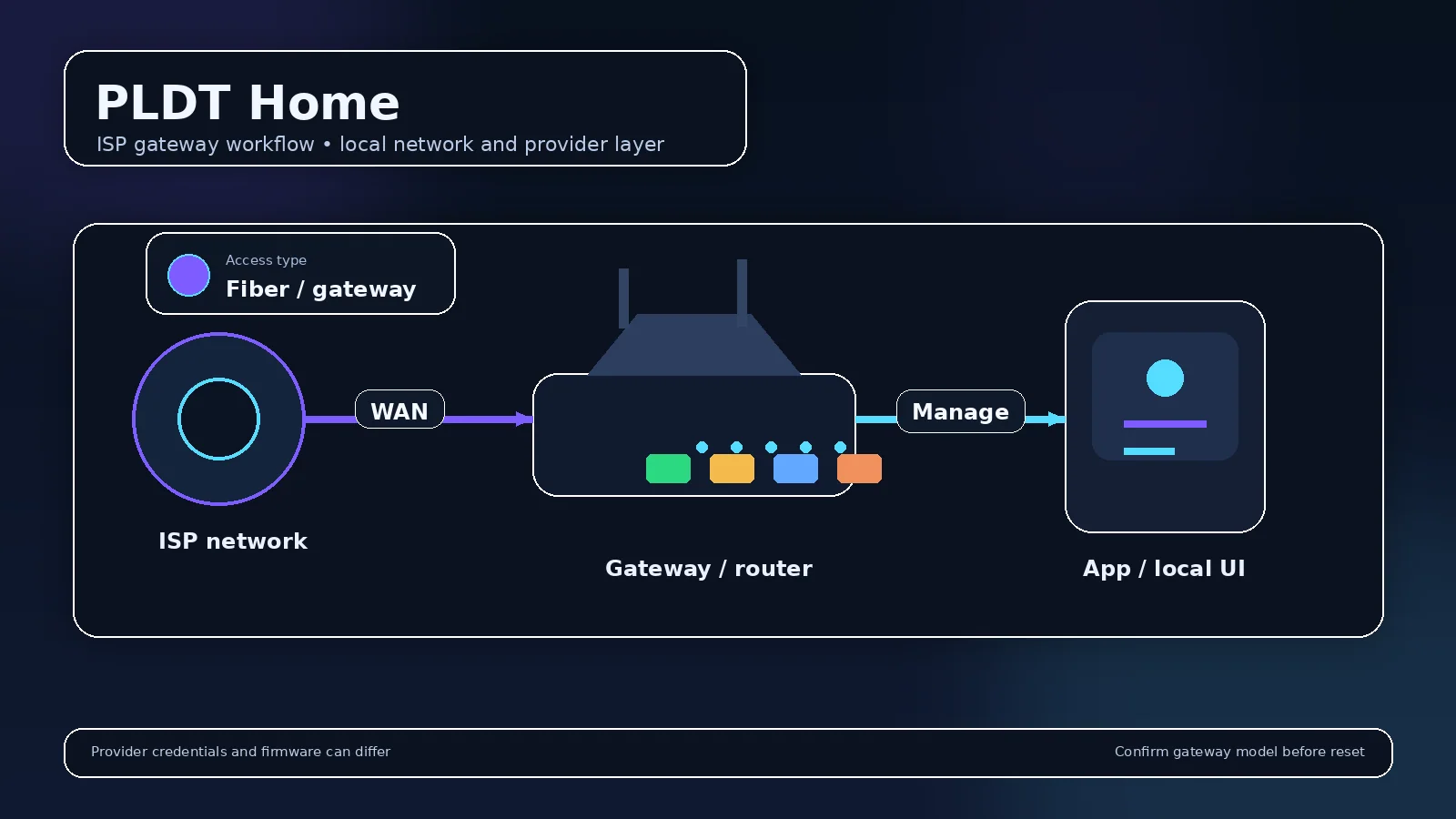
PLDT Home router access depends on the exact gateway supplied to the account. PLDT uses equipment from multiple vendors and firmware branches. Settings such as VLAN, VoIP and optical provisioning can be provider-controlled; changing them without the service parameters can break connectivity.
PLDT Home gateway details
| Region covered | Philippines |
|---|---|
| Equipment scope | PLDT fiber ONTs, modem/router gateways and Wi-Fi equipment; vendor/model varies |
| Local management | 192.168.1.1 is used by many PLDT-supplied gateway families, but verify the gateway shown on your connected device |
| Login behavior | Use the credential printed/provided for the exact PLDT unit or documented by PLDT for that model. Do not apply “superadmin” passwords from third-party lists to unrelated firmware. |
| App/portal | myPLDT Smart app / PLDT support channels where applicable |
PLDT Home documentation: PLDT Home customer user guide. The claim is limited to PLDT fiber ONTs, modem/router gateways and Wi-Fi equipment; vendor/model varies and the region stated above.
Identify the exact PLDT Home gateway generation
PLDT Home can deploy more than one hardware family across regions and service generations. Read the full device label and compare it with the support scope below before following a menu path or credential instruction from an older gateway.
How to reach the PLDT Home settings?
- Connect to the home LAN served by the PLDT Home gateway or the downstream router you intentionally installed.
- Read the exact gateway model from its label and compare it with the documented equipment scope.
- Use myPLDT Smart app / PLDT support channels where applicable where that is the supported management route for the feature you need.
- For local browser management, compare the active client gateway with: 192.168.1.1 is used by many PLDT-supplied gateway families, but verify the gateway shown on your connected device.
- Use the administrator/device-access credential for the gateway—not automatically the Wi-Fi passphrase or the PLDT Home billing-account password.
Use the current PLDT Home management path
On PLDT Home, the account app and the gateway’s local interface may expose different controls. Start with the workflow documented for the exact gateway on the account. If browser management is supported, the client default gateway is useful for discovering the local endpoint; it does not replace the provider’s model-specific instructions.
If the PLDT Home administrator password is rejected
Use the credential printed/provided for the exact PLDT unit or documented by PLDT for that model. Do not apply “superadmin” passwords from third-party lists to unrelated firmware. Check the label wording carefully because a wireless key, device access code, administrator password, and account sign-in can be different values. Stop repeated guesses after a few failures and use the recovery method documented for the exact PLDT Home gateway generation.
Using a personal router with PLDT Home
Before enabling bridge mode, IP passthrough, DMZ-to-router, or another handoff method, record which PLDT Home services depend on the supplied gateway. Television, voice, static addressing, IPv6, authentication, and remote support can be coupled to provider equipment. After the change, confirm which device now owns NAT, DHCP and inbound firewall rules so you do not configure port forwarding on the wrong router.
Reset consequences on PLDT Home equipment
A factory reset can remove the Wi-Fi name, local administrator state, forwards, reservations, parental controls, bridge/passthrough changes, and other custom settings. Some PLDT Home gateways reprovision automatically; others require provider-specific recovery. Record the label and important settings first, and contact PLDT Home when service authentication, voice, IPTV, optical or WAN provisioning is involved.
Why can an older PLDT Home screenshot show menus I do not have?
PLDT Home can change gateway families and remotely managed firmware over time. Match any screenshot or procedure to the exact PLDT Home model, firmware branch and region rather than treating one historical interface as permanent.
Why does a Wi-Fi password fail on the PLDT Home admin page?
The Wi-Fi key authenticates a wireless client; the local administrator or device-access credential protects gateway settings. Use the credential model described above for the exact PLDT Home hardware.
Provider gateway versus your own router
If you add a personal router behind the PLDT Home gateway, you can end up with two private networks and two NAT layers. That may be acceptable for ordinary browsing but can complicate inbound services, gaming, VPNs, device discovery and local management. Before enabling bridge, passthrough or access-point modes, document which box currently owns DHCP, Wi-Fi, firewalling and any provider services such as voice or IPTV.
Before contacting support
Video walkthrough for PLDT Router Login & Fiber Gateway Setup
A visual explanation of two-router topology and why two routing/NAT layers can complicate gaming, VPNs, forwarding, and local management.
Double NAT Issue Fix — Home Network Central. Watch on YouTube