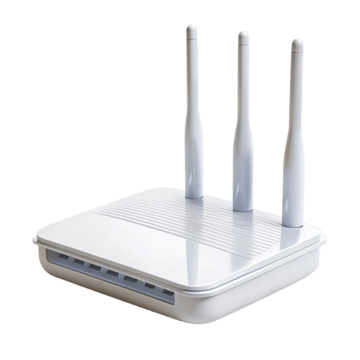
A router can sometimes operate in several modes. The names vary by manufacturer, but the key question is whether the device should create a routed network or simply extend an existing one.
Router mode
The device routes between WAN and LAN, commonly runs DHCP, performs NAT for IPv4, applies firewall policy, and may provide Wi-Fi. Use it when this device should be the primary router for the network.
Access point mode
The device mainly bridges wireless clients onto an existing LAN. The upstream router continues to provide addressing and routing. This is often the cleanest way to add Wi-Fi coverage with a second router-shaped device without creating double NAT.
Bridge/passthrough mode
On ISP gateways, bridge or IP-passthrough features can reduce or bypass the gateway’s routing role so a downstream router receives the external connection more directly. Implementations differ, especially on ISP-managed hardware.
One DHCP server per ordinary LAN
Accidentally leaving DHCP active on two devices in the same broadcast domain can hand clients conflicting gateway and DNS settings. Decide which router is authoritative before changing modes.
Decide who owns Layer-3 routing
Router mode runs WAN/LAN routing, DHCP, NAT/firewall. Access-point mode bridges clients into an existing LAN. Bridge/passthrough on an ISP gateway reduces routing so a downstream router takes over.
Avoid duplicate services
Two DHCP servers or two NAT layers can be intentional but often are not. Choose the primary gateway, then configure secondary devices for AP/bridge role if segmentation is not required.
Management address after mode change
An AP can receive its IP from the upstream router, so the old factory address can stop working. Find it in the upstream client list.
Video walkthrough for Access Point Mode vs. Router Mode vs. Bridge Mode
Explains bridge-mode concepts. ISP bridge mode, router access-point mode and wireless bridging are related but not identical, so follow the exact device documentation for configuration.
Wireless Bridge Mode — Networking — PowerCert Animated Videos. Watch on YouTube