
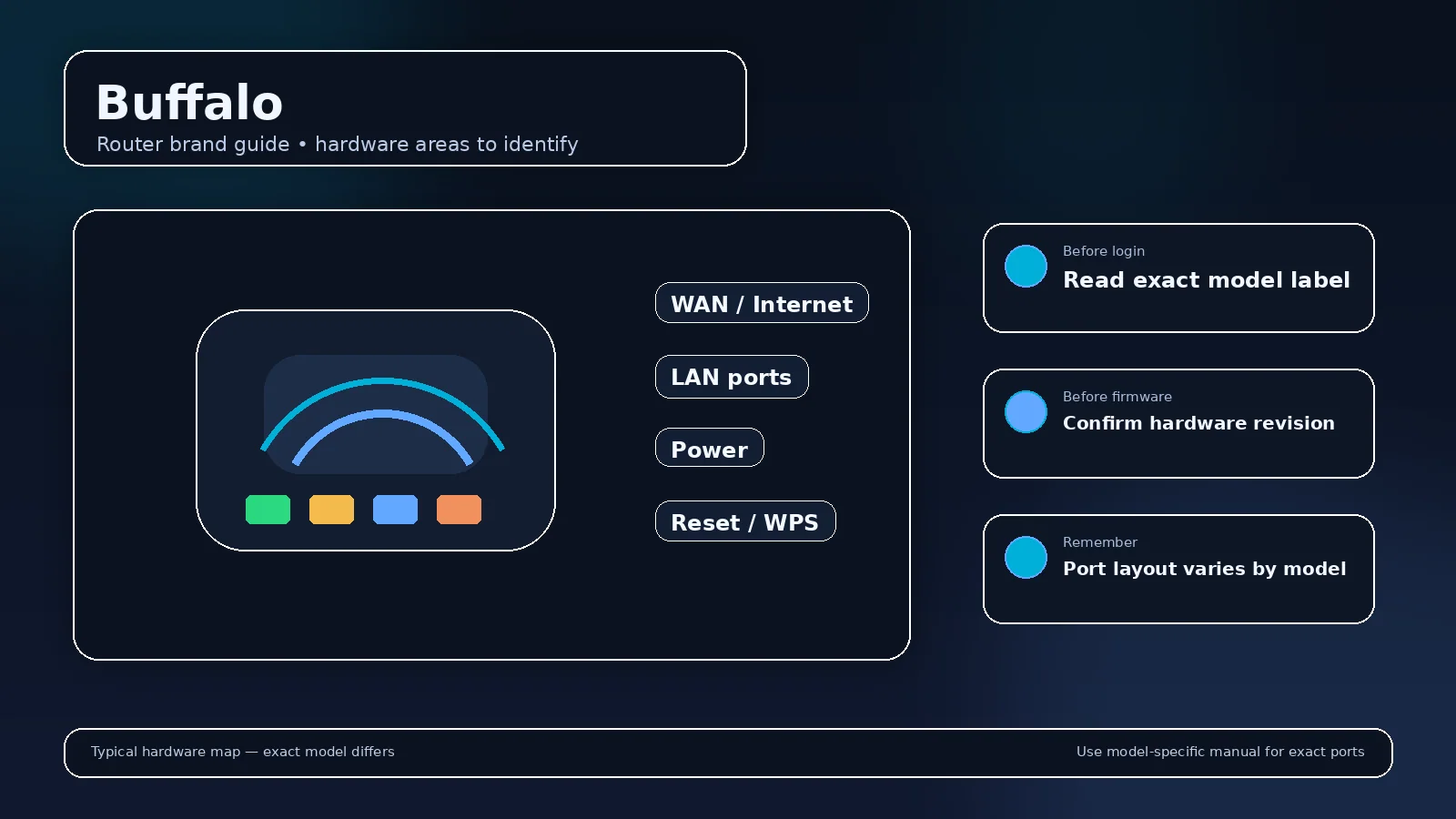
Buffalo AirStation routers are well known in Japan and other markets. Current Buffalo support documentation identifies 192.168.11.1 as the initial LAN-side address for supported Wi-Fi routers.
Finding a changed AirStation address
Buffalo provides AirStation discovery/setup methods for cases where the initial IP no longer applies. In access-point mode the unit may receive an address from an upstream router, so checking DHCP clients is safer than factory-resetting.
Credentials depend on generation
Current products can use setup-card credentials, while legacy hardware used other username/password behavior. Use the model label and regional support page rather than a single Buffalo-wide default.
Operating modes
Router versus access-point behavior changes DHCP, gateway and management assumptions. Identify the mode before troubleshooting internet access or 192.168.11.1 reachability.
Record the network role
Decide whether the box is the primary router, a modem/router gateway, an access point, a mesh node, an extender, a cellular CPE or a provider-managed device. A router-mode guide can be wrong for the same hardware in access-point mode. Check which device supplies DHCP and which address appears as the client default gateway.
Before a factory reset
Save or photograph important settings first: WAN/PPPoE details, VLAN/IPTV values, Wi-Fi names, static reservations, port forwards, VPN configuration, DNS choices and any ISP/telephony settings. A reboot preserves configuration; a factory reset erases it. Reset only after you know how the internet connection and local network will be rebuilt.
After you regain access
- Use a strong unique administrator password.
- Install supported firmware updates through the vendor/provider method.
- Review remote administration and disable WAN-side access if it is not intentionally needed.
- Use WPA2-AES or WPA3 where supported and compatible.
- Check connected clients, guest/IoT isolation and obsolete convenience features you do not use.
- Back up a known-good configuration if the product provides export/backup.
What to check in a modern home-router interface?
Once you are authenticated, resist the urge to change several settings at once. First record the WAN status, LAN subnet, DHCP range, current DNS choice, Wi-Fi security mode and firmware version. Those values describe the network before the change and give you a rollback reference if a device stops connecting.
Wi-Fi settings that deserve care
SSID, passphrase, WPA mode, band steering, channel width and guest-network isolation can affect every client. Changing an SSID or passphrase disconnects devices immediately. A manual channel can improve a known interference problem, but forcing the widest channel or a fixed channel without measuring the environment can make performance worse. Use WPA2-AES or WPA3 when supported; avoid WEP and legacy TKIP.
A safe Buffalo login and troubleshooting sequence
- Confirm ownership and model. Work only on equipment you administer. Read the full model, hardware revision and provider label.
- Join the correct LAN. Use trusted Wi-Fi or Ethernet. Guest networks can intentionally block management traffic.
- Read the current gateway. Factory addresses are clues, not guarantees after setup. Windows, macOS, iOS and Android can show the gateway/router assigned to the active connection.
- Open the local address directly. Type the numeric address or documented local hostname in the browser address bar. Do not search the password or paste credentials into a public website.
- Interpret the result. A login form proves network reachability; a timeout suggests address/routing/isolation trouble; rejected credentials are an authentication problem, not an IP problem.
- Use model-specific recovery. Check the label, manual, vendor/provider app and official recovery steps. Reset only after other recovery options fail.
What a router IP can and cannot tell you?
A local IP tells you where an interface is reachable on that network. It does not identify the exact model, prove who owns the device, or reveal the administrator password. The same private address can be used simultaneously in millions of unrelated homes. Treat IP, model, administrator credential, Wi-Fi password and cloud account as separate facts.
When a source conflicts with your device?
Video walkthrough for Buffalo
Use this when a remembered factory address does not open: find the gateway the connected device is actually using before changing credentials or resetting hardware.
How to Find Your Default Gateway or Router IP Address — YouTube networking tutorial. Watch on YouTube
Useful next steps
Check the AirStation mode before choosing an IP
Buffalo: buffalo AirStation products; regional/model-specific setup can differ
- Buffalo check: before following an AirStation guide, copy the complete WHR, WZR or other model identifier from the label. A shared brand name is not enough to select firmware, a reset sequence or a management address. Keep the serial number private when requesting help. Official source 1
- Buffalo check: draw the Ethernet path from the modem or upstream router to the AirStation. Then note whether clients receive their addresses from the AirStation or from another router. This separates a management-address problem from a change in which device supplies the LAN. Official source 1
- Buffalo check: if the AirStation is being used only for wireless coverage, inspect the upstream router’s connected-device or DHCP lease list. Match the device identity to its label where possible; a remembered factory IP is less useful than the address actually assigned in the current installation. Official source 1
- Buffalo check: check the exact manual before changing any physical mode selector. A label such as router, bridge or auto can have model-dependent behavior. Record the original position and current cabling so that a change can be reversed without guessing. Official source 1
- Buffalo check: after locating the page, compare its product identifier with the label before uploading firmware. A working login page proves local access, but does not establish that a downloaded image is suitable for that hardware or region. Official source 1
Illustrative case: Changing router/bridge operation changes the relevant network topology. Identify the main routing device and the AirStation’s management address separately.
Documentation and scope