
GL.iNet router login information is model-specific. On first setup, the owner creates an admin password. Do not confuse that password with the wireless key or assume a permanent factory admin password.
How to identify the correct GL.iNet management path?
GL.iNet products can be managed differently across generations. Before changing settings, establish whether the device is the main router or a downstream component and whether the current firmware is retail or provider-customized.
- Connect to the GL.iNet device or the LAN it serves.
- Read the client default gateway before trying a remembered private address.
- Management method: http://192.168.8.1 is the standard first-login address for many current GL.iNet routers.
- App/cloud context: GL.iNet app on supported devices plus the local web Admin Panel.
- Use the administrator value documented for the exact unit; never infer it from the IP address.
Representative official documentation: GL.iNet Docs: first-time setup. Scope: GL.iNet routers running current GL.iNet firmware 4.x; customized images and changed LAN subnets can differ.
Addresses associated with GL.iNet
192.168.8.1
These addresses are discovery starting points for GL.iNet, not permanent identities. A changed LAN subnet, access-point/bridge mode, mesh adoption, or an upstream router can move the local management address after setup.
If a GL.iNet page does not open
Check the actual client gateway, test from the trusted/home LAN rather than guest Wi-Fi, and remove an overlapping VPN route for the test. If the GL.iNet unit is not the primary router, inspect the upstream DHCP/client list for its assigned address. A timeout is an address/routing symptom; a visible login screen with a rejected password is an authentication symptom.
Administrator password, Wi-Fi key, and account sign-in
On GL.iNet equipment, those credentials can be separate. The Wi-Fi passphrase joins the wireless network, while the administrator credential protects local configuration; app-managed products can add a cloud identity and ISP devices can add a provider account or device-access code. Use the label wording and exact documentation instead of assuming one printed password serves every role.
What should you record before changing a GL.iNet router?
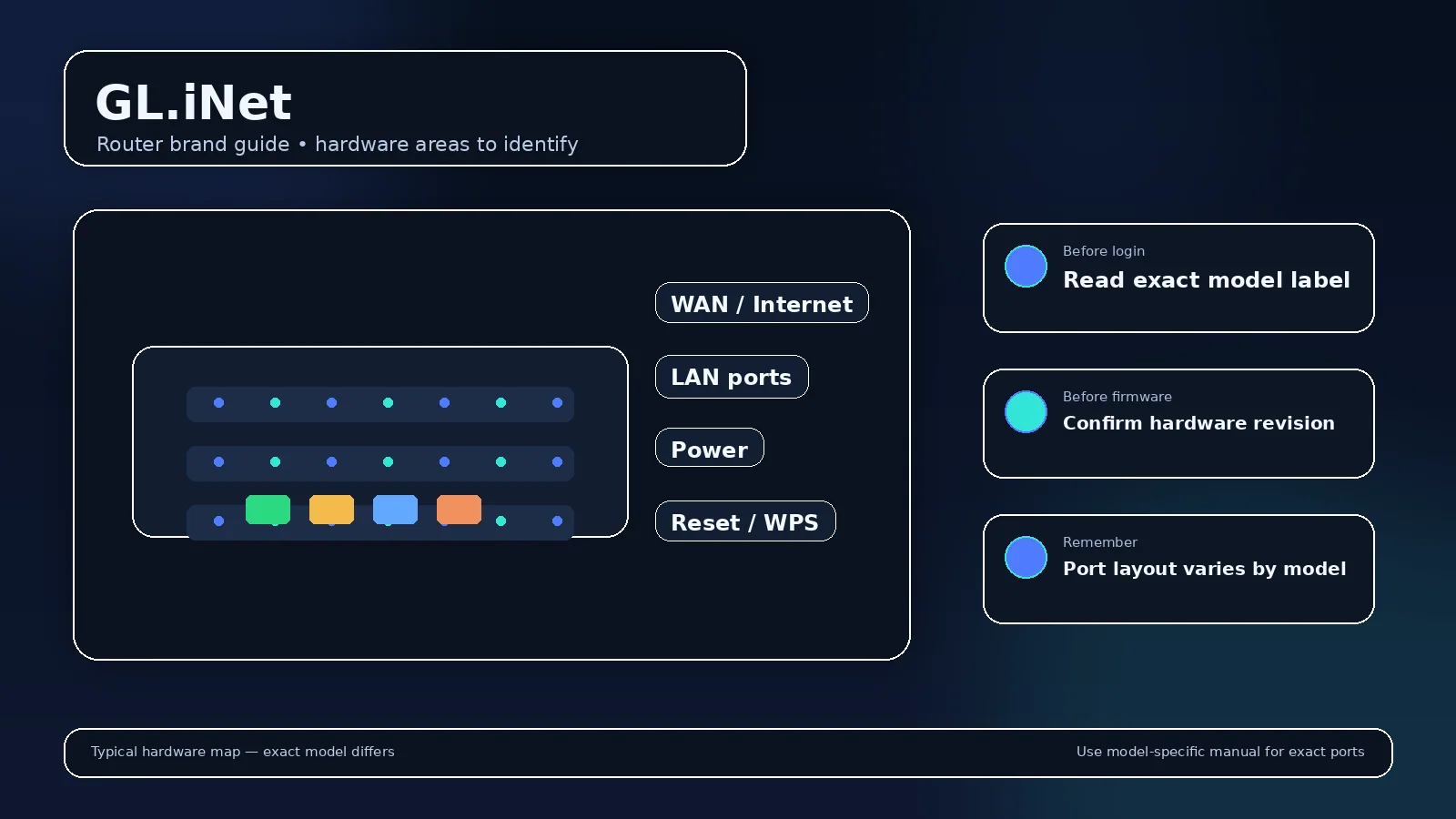
Record the full model, hardware revision, firmware, LAN subnet, current gateway, WAN mode, SSIDs, and any reservations, VPNs, forwards, or provider-specific settings. For GL.iNet firmware work, the exact model/revision support page takes priority over a visually similar product.
Reset and recovery for GL.iNet
A normal reboot preserves configuration; a factory reset does not. Before resetting a GL.iNet device, identify how the internet connection will be restored and whether ISP voice, IPTV, VLANs, mesh pairing, or cloud onboarding need separate recovery. Use the exact model procedure rather than a brand-wide reset timer.
Why can the printed password be rejected?
On a GL.iNet label, the printed value may describe Wi-Fi, setup, device access, or local administration. Match the label field to the prompt on the screen before deciding the credential is wrong.
Why can another GL.iNet guide show a different login?
GL.iNet routers running current GL.iNet firmware 4.x; customized images and changed LAN subnets can differ. Model families, firmware generations, regions and ISP customization can legitimately produce a different address or management workflow.
How to identify the exact GL.iNet device before changing settings?
Read the model number, hardware revision and provider branding from the label or current dashboard. Two products carrying the same brand can use different management addresses, apps, reset behavior and firmware. If the device was supplied by an ISP, the provider can replace retail firmware, hide settings, or assign a different LAN. The safest sequence is: identify the unit, read the current default gateway, open the local interface or supported app, then match instructions to that exact model/revision.
Related guides
Use the router login guide to discover the current gateway, the administrator-password recovery guide when sign-in fails, and the firmware guide before applying updates.
Video walkthrough for GL.iNet
Official GL.iNet first-setup guide covering Ethernet, repeater, tethering, and cellular connection methods supported by different models.
How to Setup GL.iNet Routers for the First Time — GL.iNet. Watch on YouTube
Useful next steps
Trace the travel-router uplink and client LAN separately
GL.iNet: gL.iNet routers running current GL.iNet firmware 4.x; customized images and changed LAN subnets can differ.
- GL.iNet check: on first setup, the owner creates an admin password. Do not confuse that password with the wireless key or assume a permanent factory admin password. Official source 1
Illustrative case: A travel router reaches a hotel portal but its clients cannot browse. Distinguish upstream captive-portal authorization from the private LAN and any enabled VPN policy.
Documentation and scope