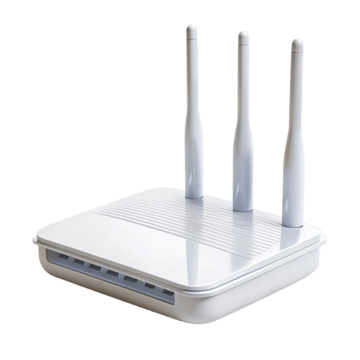
How to Reboot a Router Safely and When It Actually Helps? — Restart networking equipment without accidentally factory-resetting it or hiding a recurring fault. The steps below stay focused on that exact task so you can verify the result without turning an unrelated router setting into a second problem.
What should you know before starting?
- Reboot/restart preserves configuration; factory reset erases it.
- A modem/ONT and router are separate devices in many homes and may need an orderly restart.
- Repeated reboots can temporarily hide overheating, failing power supplies, firmware bugs or ISP faults.
For How to Reboot a Router Safely and When It Actually Helps?, first identify the router or gateway that actually owns the setting. Record the current value and the active gateway address. If the equipment came from an ISP, leave WAN authentication, provider VLANs, voice, optical settings, and remote-provisioning fields alone unless the provider documentation for your exact service tells you to change them.
Step-by-step
- Save any pending settings changes.
- Use the router’s Restart/Reboot command when accessible, or disconnect power normally.
- If modem/ONT and router are separate, power the router off, restart the modem/ONT only when appropriate, wait for service sync, then power the router.
- Allow several minutes for WAN, DHCP, mesh and Wi-Fi services to return.
- Verify internet, DNS and local access before repeating the reboot.
How do you verify this specific change?
After completing How to Reboot a Router Safely and When It Actually Helps?, test the function you actually changed before touching anything else. Compare the observed result with the baseline you recorded. If the change affects Wi-Fi, test at least one modern client plus any older/IoT client that matters; if it affects routing, test from the side of the router where the behavior is supposed to occur.
Common mistakes to avoid
- Do not press/hold the recessed Reset button.
- Do not interrupt a firmware update.
- Do not reboot optical/voice equipment repeatedly when the provider is provisioning it.
Technical detail behind this task
Track symptoms and uptime. If a router needs scheduled reboots to remain usable, check firmware, temperature, memory pressure, power supply and WAN logs rather than treating rebooting as a permanent fix.
How should you document the final state?
For How to Reboot a Router Safely and When It Actually Helps?, keep a short note of the old value, the new value, the router model/firmware, and the test that confirmed the outcome. That note is especially useful after a firmware upgrade, factory reset, or router replacement because it records intent rather than only a screenshot.
Should I reset the router if this task fails?
Not simply because How to Reboot a Router Safely and When It Actually Helps? did not work on the first attempt. A factory reset erases unrelated configuration. First restore the previous value, confirm the correct device and management path, and use the exact model recovery procedure only when configuration is genuinely unrecoverable.